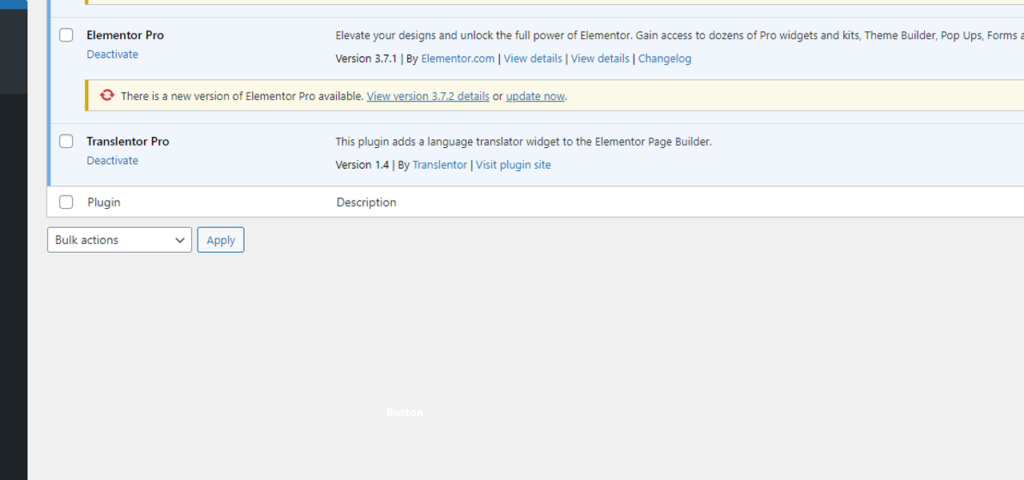
If you notice that something is broken on the translated version of your page, try deactivating some plugins.
If this doesn’t help, please contact support by clicking the button below.
Translentor is installed & activated just like any other WordPress plugin.
Read on for an in-depth tutorial on how to get started.
Step 1
Download the Plugin Zip File
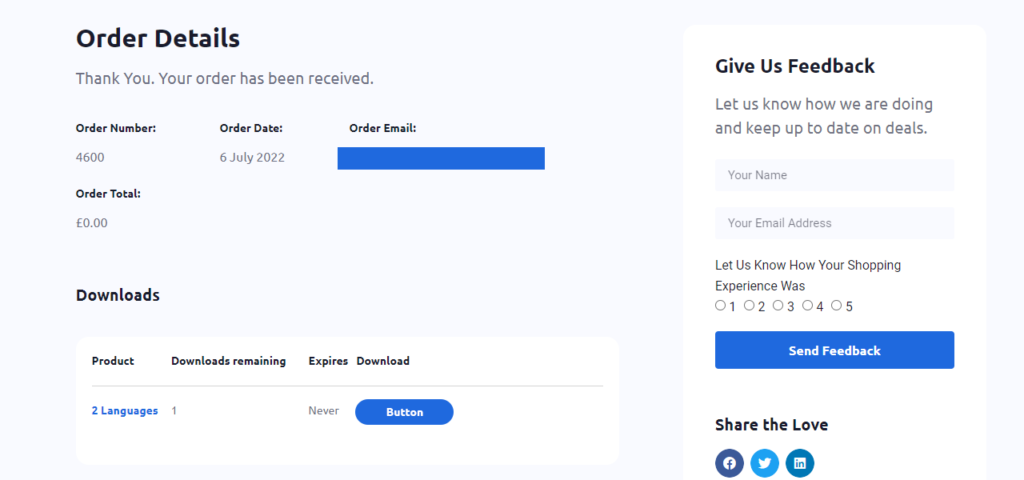
After downloading the free/pro version, you’ll receive an email containing links to your downloads and also the information to access your account.
By logging into your Translentor Account you will be able to download the main plugin, download the premium version, upgrade to the most recent version, see your serial number (coming soon), renew your license (coming soon) if it’s expired and also see your purchase history with us.
After you download the plugin:
Unzip the archive and upload the plugin folder under the /wp-content/plugins directory.
Or install it from your WordPress admin Plugins → Add New → Upload and upload your .zip file and then just hit Install Now button.
Step 2
Activate Translentor
After the installation completes, just press Activate Plugin and the plugin will be ready for use.
Step 3
Where is Translentor Located in the Dashboard?
After the installation and activation, you can find the Translentor options under “Settings” in the dashboard.